How to Change the Time on Your iPhone
Your iPhone normally sets its time and time zone automatically. You can switch to manual settings, choose a time zone, or change the clock to 24-hour format in Settings.
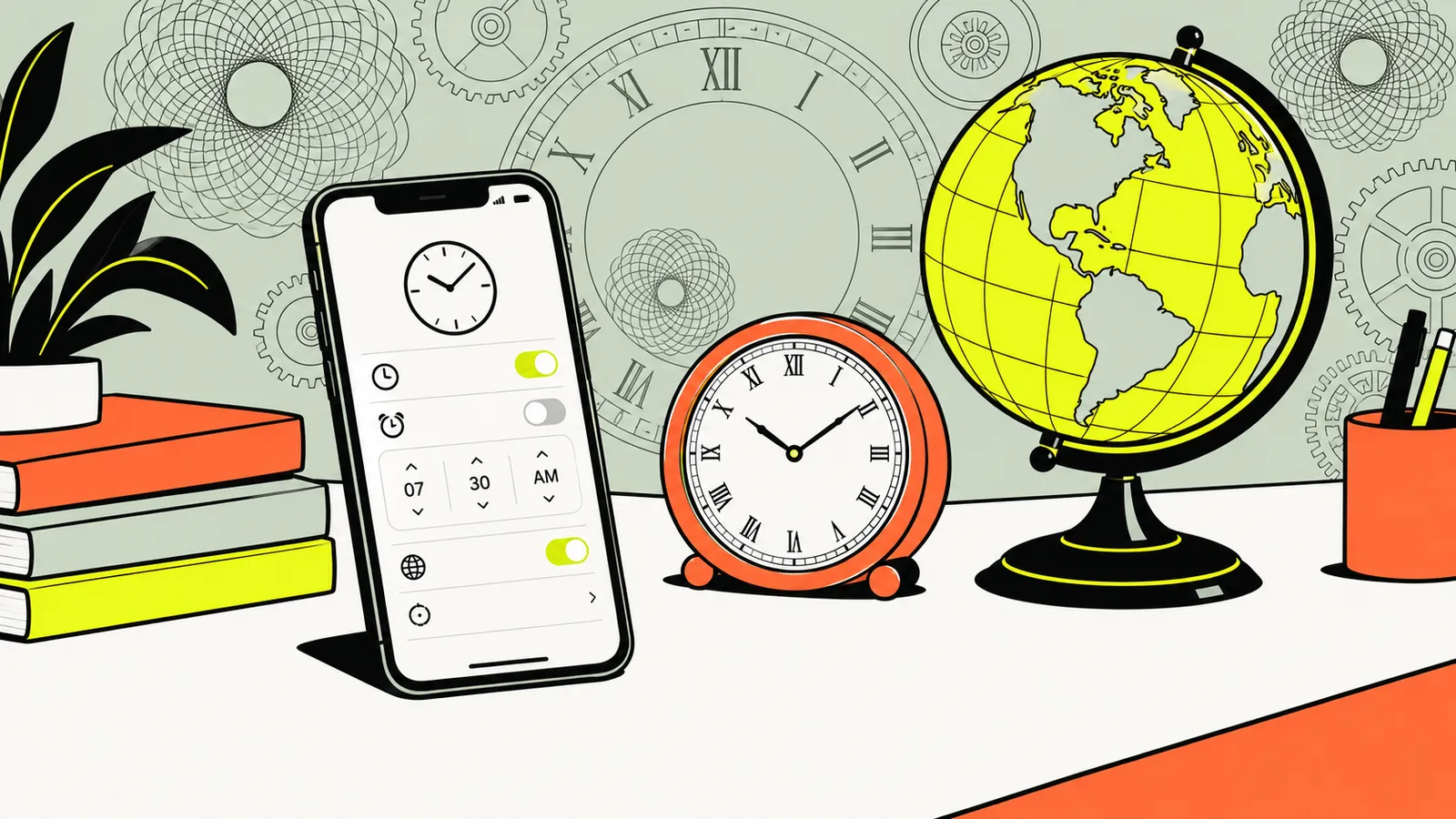
Go to Settings > General > Date & Time. Leave Set Automatically on for the correct local time, or turn it off to set the date and time manually; you can also change the time zone and 24-hour clock format on this screen. Apple Support confirms these settings and the manual time-zone options.
- IAutomatic time is the simplest choice for most people.
- IIManual date and time require Set Automatically to be off.
- IIIYou can select a time zone by city or offset.
- IV24-Hour Time is a separate clock-format setting.
- VScreen Time or a device profile can restrict time settings.
Keep your iPhone time set automatically
For everyday use, the safest choice is usually to let your iPhone set its date, time, and time zone automatically. Open Settings > General > Date & Time, then turn on Set Automatically. Apple says automatic settings can adjust the device clock for time-zone changes and daylight saving time. Your iPhone needs an internet connection and current software for automatic time settings, according to Apple Support.
Check the automatic setting
- Open Settings.
- Tap General, then Date & Time.
- Turn on Set Automatically if it is available.
- Check that the displayed time and time zone match your location.
If your phone is showing a different local time after travel, the issue may be the time zone rather than the clock itself. Automatic settings are designed to make that adjustment for you. If the display is still wrong, confirm that the phone is connected to the internet and check whether Setting Time Zone is allowed in Location Services. Apple’s instructions place that control under Settings > Privacy & Security > Location Services > System Services.
Use automatic time for alarms, appointments, and calendar reminders unless you have a specific reason to override it. If you need to calculate how far apart two dates are, use the date calculator; it avoids changing your phone clock just to work out a date span.
Set the date and time manually
To enter a time yourself, open Settings > General > Date & Time and turn off Set Automatically. Then tap the date or time control and enter the values you need. Apple’s manual-setting instructions use this same path, and note that you can also choose a time zone from the Date & Time screen.
When manual time is useful
Manual time can help if you need a temporary clock setting for a specific reason, or if your iPhone cannot determine the correct time automatically. For example, you might set the date to November 10, 2026 and the clock to 9:30 a.m. to match a particular schedule. That example is only an illustration; choose the date and time that actually apply to you.
Before changing the clock, consider whether you only need to calculate a duration or plan an appointment. The time-duration calculator can work out elapsed time without changing system settings, while the meeting planner can help compare a scheduled meeting across locations.
When you have finished, return to Date & Time and turn Set Automatically back on if you want the phone to resume using automatic time. Manual changes can make the displayed time differ from the actual local time. That can affect how you interpret calendar events, alarms, and other time-based information. Apple advises against manually adjusting the clock to change the behavior of apps such as game timers.
| Setting | What to do | Best for |
|---|---|---|
| Automatic | Turn on Set Automatically | Keeping local time updated |
| Manual | Turn off Set Automatically, then edit the date or time | A specific temporary setting |
Change or override the iPhone time zone
If the time is wrong by an hour or more, check the time zone before editing the clock. Go to Settings > General > Date & Time and turn off Set Time Zone Automatically. Depending on the options shown on your iPhone, choose a city under Time Zone City or select a time-zone offset under Set By. Apple documents both ways to select a time zone.
Choose a city or offset
Use a city when you know the place whose local time you want the iPhone to follow. For example, if you are arranging a call based on Chicago time while you are elsewhere, select the city that matches the intended time zone. If you are unsure how a destination compares with your own location, check it with a time zone converter or time difference tool before changing the phone.
A manual time-zone override is different from setting the clock itself. The zone determines which local time applies; the clock time is the displayed hour and minute. Setting the wrong zone and then changing the clock manually can compound the error. If your goal is to see what time it is in another place without changing your own clock, use the site’s World Clock.
To return to location-based time-zone selection, go back to Date & Time and turn on Set Time Zone Automatically, if that control is available. Apple notes that an iPhone may set its time zone automatically, but that it can be changed manually if Location Services is off or the iPhone has no service. If automatic selection is not working, verify the location setting described in the previous section.
Turn 24-hour time on or off
The 24-hour clock changes how hours appear; it does not change the underlying time or time zone. Open Settings > General > Date & Time and switch 24-Hour Time on or off. Apple lists this control separately from the automatic date and time setting.
Choose the format that is easiest to read
With a 12-hour clock, the display distinguishes between a.m. and p.m. With a 24-hour clock, the hours continue through the day instead. Choose whichever format helps you avoid confusion when reading schedules or entering times. Changing this preference is not the same as correcting an inaccurate clock: if the time itself is wrong, check automatic time and the time zone.
For example, if a work schedule lists a start time of 9:00 a.m. in London, changing your iPhone to 24-hour display will not convert that appointment to your local time. Use the meeting planner or a time-zone converter to compare locations, then enter the correct local event time in your calendar.
The Lock Screen clock’s appearance is another separate setting. Apple says you can change its font color and style by editing the Lock Screen or creating a new one. That changes how the clock looks, not the date, time zone, or 12- versus 24-hour preference. If you are trying to make the clock easier to read, check the Lock Screen appearance rather than repeatedly changing the time settings.
Why is Set Automatically greyed out?
If Set Automatically is dimmed or unavailable, you may not be able to change it yourself. Apple identifies a Screen Time passcode and a corporate profile with device restrictions as possible reasons the control is unavailable. Apple also notes that automatic time settings may not be available with some carriers or in some countries and regions.
Check the likely restrictions
- Screen Time: If Screen Time restrictions are in use, the passcode or settings managed through Screen Time may prevent changes. Ask the person who manages the passcode to review the restriction.
- Work or school management: A corporate profile can apply device restrictions. Contact the organization’s device administrator rather than trying to remove a work profile without permission.
- Carrier or region: Apple says availability can vary by carrier and country or region. If the setting is missing, your carrier or Apple Support can help clarify what is supported.
- Location access: To have the iPhone determine its time zone from location, check Settings > Privacy & Security > Location Services > System Services > Setting Time Zone.
Apple’s support guidance also recommends connecting to the internet and installing the latest software updates for automatic time settings. If you see a message that updated time-zone information is available, restart the iPhone and any paired Apple Watch. Avoid repeatedly changing the time by hand to work around a restriction; the restriction may be intentional, and a manual clock can leave appointments and alarms out of sync.
| What you see | What to check |
|---|---|
| Set Automatically is dimmed | Screen Time passcode or corporate profile restrictions |
| Automatic time-zone selection is inaccurate | Internet connection and Setting Time Zone in System Services |
| Automatic settings are not offered | Carrier or country/region availability |
Use World Clock instead of changing your phone time
If you want to check another city’s time, you usually do not need to change your iPhone’s system clock. Keep your local time set automatically and use a world clock to view another place separately. The site’s World Clock can help you check city times, while a time zone converter is useful when you need to compare a particular time across locations.
Example: checking a meeting time
Suppose an invitation says the call begins at 9:00 a.m. in London. Rather than setting your iPhone’s clock to London time, enter the city and scheduled time in a converter or planner to find the corresponding time for your location. This keeps your iPhone clock aligned with its own local time while still letting you plan around the other city.
On an iPhone, the Clock app’s World Clock feature is also intended for following other cities independently of the main clock. Use it when you want a quick city reference, and leave the system time unchanged. If a city is not obvious in a list, search for the city name or a nearby place in the same time zone.
For larger planning tasks, use the meeting planner to compare several participants’ locations. For a simple elapsed-time calculation, try the hours calculator. These tools answer different questions from Date & Time settings: they help you interpret or plan time, rather than changing the clock your iPhone uses.
Avoid common time-zone and daylight-saving mistakes
When you travel, distinguish between your phone’s current local time and the time of a place you want to contact. If you want the iPhone to follow your current location, use automatic settings and check that Location Services can determine the time zone. If you want a fixed zone instead, turn off automatic time-zone selection and choose the appropriate city or offset.
Daylight saving time can make a city’s local clock change during the year. Apple says automatic date and time settings can adjust for time-zone changes and daylight saving time. This is one reason automatic time is usually preferable to manually entering a time: you do not need to remember to make a separate clock adjustment when local rules change. For background on how the seasonal change works, see the site’s guide to daylight saving time.
Common mistakes to avoid
- Changing the clock when the zone is wrong: Check the selected time zone first.
- Changing the time zone to read another city’s clock: Use World Clock or a converter instead.
- Assuming 24-hour time changes the time: It changes only the display format.
- Leaving manual settings on after a temporary need: Turn Set Automatically back on when appropriate.
- Confusing an appointment’s time zone with your own: Convert the scheduled city time before entering the event.
If you need to calculate how much time remains until a scheduled event, the countdown can help without altering the phone’s clock. The key is to use the right tool for the task: settings for your device clock, and a separate clock or calculator for other places and schedules.
If you are changing time on another device
The iPhone steps in this guide apply to iOS. If you are trying to fix a different device, its settings are not necessarily in the same place. Google’s Android instructions put automatic date and time and time-zone controls in the device’s date-and-time settings; the exact route can vary by device. See Google’s Android time and date instructions, or use our guide to changing time on Android.
On Windows, date, time, and time-zone options are under Settings > Time & language > Date & time, according to Microsoft Support. Windows has separate controls for automatic date and time and automatic time zone, so do not look for the iPhone’s Set Automatically switch. Our Windows 11 time-zone guide covers those steps.
If the time on an iPhone is wrong after it has synced with a Mac, Apple says to check that Date & Time are set correctly on the Mac. Correcting the source device may be more useful than repeatedly changing the iPhone. For iPhone-specific problems, return to the Apple settings path and check whether the setting is managed, unavailable, or simply set to the wrong time zone.
Questions people ask
How do I change the time on my iPhone manually?
Go to Settings > General > Date & Time, turn off Set Automatically, then tap the date or time to adjust it. Apple documents this manual option. Turn automatic time back on when you want the iPhone to resume updating its clock automatically.
Why can’t I turn off Set Automatically?
Apple says a Screen Time passcode or a corporate profile with device restrictions can make the setting dimmed or unavailable. Automatic time settings may also be unavailable with some carriers or in some countries and regions. If the iPhone is managed by work or school, ask its administrator about the restriction.
How do I change the time zone on my iPhone?
Open Settings > General > Date & Time and turn off Set Time Zone Automatically. Then choose a city under Time Zone City or select an offset under Set By, if those options appear on your device. Apple notes that time zones can also be set automatically.
How do I switch my iPhone to 24-hour time?
Go to Settings > General > Date & Time and turn 24-Hour Time on or off. This changes the clock format, not the actual time or time zone. Apple lists the format control on the same settings screen as the other date-and-time options.
Can I see another city’s time without changing my iPhone clock?
Yes. Keep your iPhone’s local time set automatically and use a World Clock display or a time-zone converter to check another city. For example, you can compare a 9:00 a.m. London meeting with your local time without changing the iPhone’s system clock.
Will my iPhone adjust for daylight saving time automatically?
Automatic date and time settings can adjust for time-zone changes and daylight saving time, according to Apple Support. Keep Set Automatically on when available, and make sure the iPhone can connect to the internet and use location to determine its time zone if needed.
Sources
- Change the date and time on iPhone, Apple Support
- If you can't change the time or time zone on your Apple device, Apple Support
- Set time, date and time zone, Google
- Set time, date, and time zone settings in Windows, Microsoft Support
Edited by Leo, editor of WhatTimeIsIt.blog
Calculations on this page run in your browser using the IANA time zone database and standard calendar rules. Facts are checked against the government agency, standards body or official source linked in the text. Last reviewed November 10, 2026. See the editorial policy or report an error to hello@whattimeisit.blog.