

Your clock’s wrong again? That’s on you. You trust “Set Automatically,” then kill Location Services, slap on a VPN, and wonder why you’re stuck in Yesterdayland. Airplane mode? Battery saver strangling background sync? Carrier shoving its own time? Corporate profile locking settings? Cute. You want the fix, not excuses. Let’s rip through the culprits, punch by punch, and make your phone obey—starting with the switch you ignored.
Key Takeaways
- Location Services or app permissions disabled stop accurate GPS/Wi‑Fi fixes, so the system can’t detect your time zone.
- Toggling Set Automatically off/on or cycling Airplane Mode forces a fresh time‑zone check; ensure region/locale matches your physical country.
- VPNs, proxies, or hotel Wi‑Fi can mask location, causing IP‑based misdetection; disable VPN or choose a local exit server.
- Carrier NITZ signals, roaming, or old SIM provisioning may force wrong network time; reseat SIM, toggle network selection, or contact your carrier.
- Battery Saver, Airplane Mode, or outdated OS/tzdata can block updates; update, restart, and allow automatic time/zone to prevent DST mismatches.
Check Location Services and Permissions
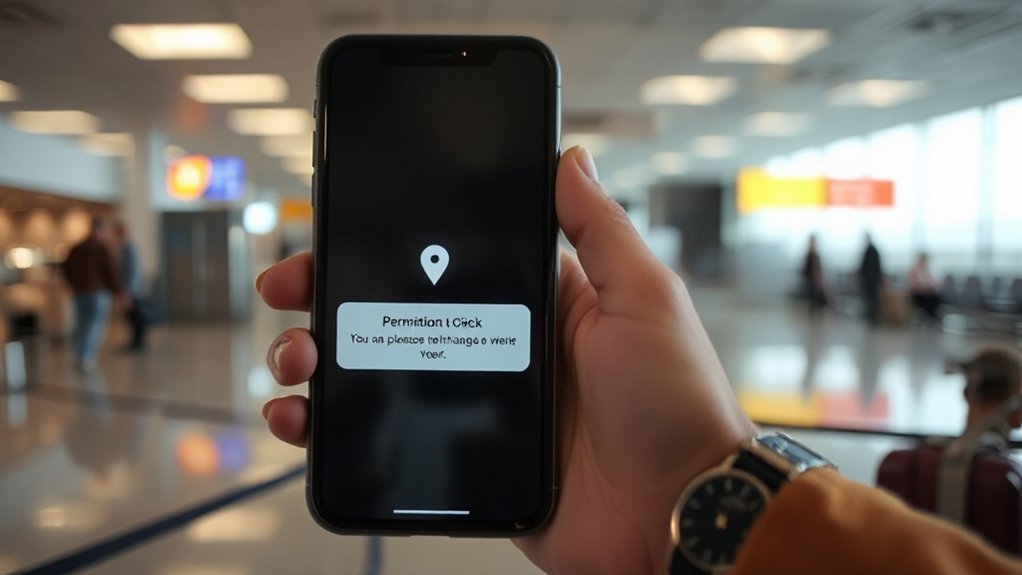
Why is your phone guessing your time zone like a bad psychic? Because you starved it. You turned off Location Services, then expected miracles. Open settings. Check if location is enabled for your clock or system services. If it’s off, that’s your culprit. Next, do permission auditing like you mean it. Does the clock app have access always, while using, or never? Pick the one that actually lets it see where you are. Don’t fear the toggle. Fear being late.
Now the hard truth. GPS accuracy matters. In buildings, subways, or rural dead zones, your phone guesses with Wi‑Fi or towers. That’s shaky. Step outside. Give it sky. Wait a minute. Watch it snap to reality. Still wrong? Reboot. Then stop blaming ghosts already.
Verify “set Automatically” and Region Settings
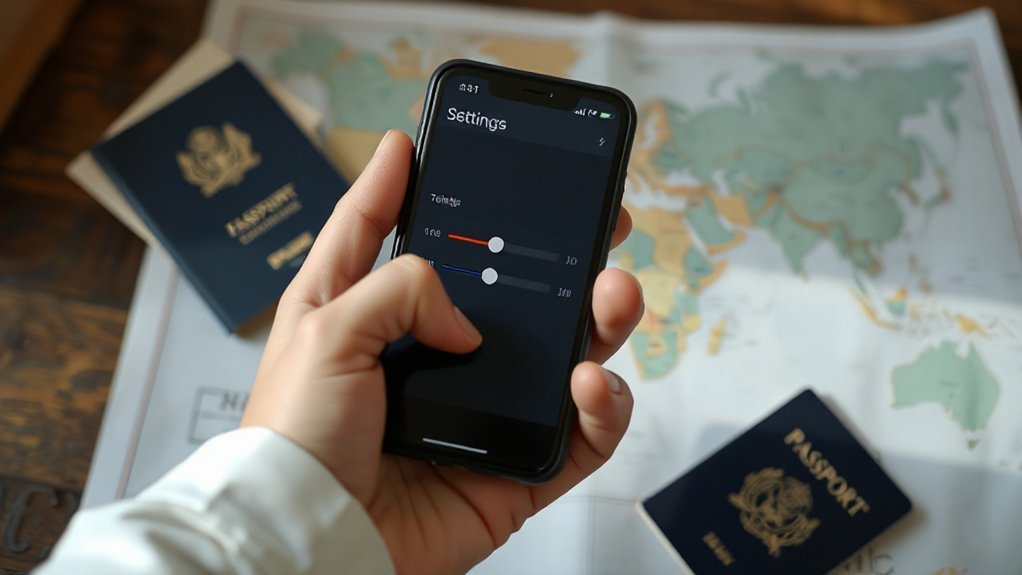
Flip “Set Automatically” off then on—yes, the ancient IT trick—because your phone isn’t psychic. If it still sulks, open Region/Locale and pick the actual country you’re in, not the fantasy vacation you tapped last summer. You want accurate time, you prove it: toggle, confirm, repeat, and if the clock still lies, you know exactly where the blame lives.
Toggle Set Automatically
How do you shut up a stubborn clock? You flip the switch it fears. Open Date & Time and slam Set Automatically off. Wait. Ten seconds. On again. Don’t baby it. Watch the Toggle Behavior. Does the time jump, hesitate, or ignore you like a smug cat? If it moves, good. If it sulks, push harder. Airplane mode on, off, then repeat the toggle. You’re forcing a handshake. You want Preference Persistence, not one‑time magic. Lock the change by backing out, then returning to confirm the setting stuck. Still wobbling? Try a restart, then hit the toggle once more. No rituals. Just control. Your phone works for you. Make it prove it. Now breathe. Check the lock screen. Did time finally obey? You win.
Validate Region Locale
Even if the toggle finally listened, your phone might still be lying about where it lives. Check Region. Not vibes. Facts. Open Settings, hit General, then Language & Region, and read it out loud. Does the region match your feet on the ground? If not, fix it. Now. Time follows region, not hope. Wrong locale wrecks language preferences, date order, and currency formatting, then your calendar cries. Flights shift. Alarms betray you. You’re late and it’s your fault. Switch region, restart, and watch the clock snap to reality. Still off? Kill any VPN that spoofs location. Ditch weird profiles. Reset network settings if you must. Don’t baby it. Make it obey. You asked for automatic. Prove it’s automatic. No mercy. No excuses. Fix time.
VPNs, Proxies, and IP-Based Time Zone Detection

Your VPN swears you’re in Paris, your clock screams Ohio—guess who wins. When a proxy masks your location, the system grabs the IP’s time zone and—boom—wrong city, wrong hour, wrong life. Kill the VPN, pick a local exit server, or expect IP geolocation mismatches to keep wrecking your calendar, your alarms, and yes, that meeting you’re already late for.
VPN Masking Location
While you blame the laptop, the real prankster is your VPN spoofing your location and feeding sites a fake IP, so auto time zone picks Tokyo when you’re in Toledo.
It’s not cute. Your clock obeys the mask, not your feet. You hop servers. Your hours jump. Meetings go weird. Alarms betray you. And yes, you asked for it.
You wanted Privacy benefits. You forgot Legal considerations. Some sites set time by IP. So your calendar gets punked. Fix it now.
Disable the VPN for scheduling. Or lock the time zone manually. Whitelist trusted apps. Pick one region and stay put, hero.
| Move | Result |
|---|---|
| Disable VPN | Local time returns |
| Manual zone | Stable schedule |
| App whitelist | Fewer surprises |
| One server | Less chaos |
Own it today.
IP Geolocation Mismatches
How does the web decide where you are? It stares at your IP, shrugs, and guesses. Harsh, yes. But true. IP-based time zone detection trusts databases, not your reality. You hop on a hotel Wi‑Fi, it says you’re three states away. You use a proxy, suddenly you live in Oslo. Close enough? No.
Here’s the kicker. Database Accuracy lags. IP blocks move. ISPs reshuffle. Corporate networks tunnel traffic through random cities. And IPv6 Adoption? Faster addresses, slower correction. Many tools still cling to IPv4 habits, so your clock goes rogue.
Fix it. Kill the VPN. Drop the proxy. Toggle automatic time zone off then on. Let your device use GPS or Wi‑Fi positioning. Or manually set the zone. Stop trusting blind guesses. From machines.
Carrier, SIM, and Network Time Servers
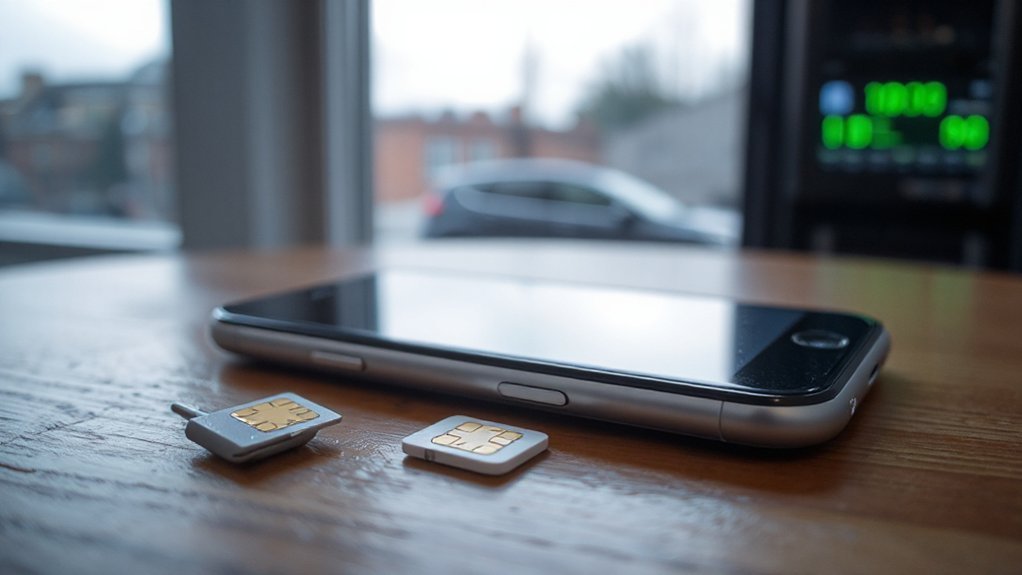
Why is the clock still wrong after you cross a border? Your carrier, not your phone, sets the rules. Towers shout time via NITZ; some whisper, some lie. Roaming adds lag. Old SIM provisioning tells your device to trust the home network, so it stays loyal and dumb. Swap regions, same stubborn clock. Dual‑SIM? They argue; nobody wins.
Network time servers should rescue you. But NTP synchronization stalls when the carrier blocks ports or rewrites DNS. Hotel Wi‑Fi adds its own joke splash page and you miss the tick. CGNAT muddies packets. Cheap MVNOs fetch time slowly. 3G relics drift. IMS flips on, flips off.
Fix it fast. Toggle network selection. Reinsert the SIM. Ask the carrier. Demand accuracy. No excuses. Fix time now.
Battery Saver, Airplane Mode, and Background Restrictions
Because you told your phone to save every last drop, it kills the clock first. Battery Saver slams the brakes on location pings and background checks. Time auto‑update? Nice idea. It’s suffocating. You wanted endurance, you got confusion. App throttling chokes the system service that listens for network time, then pretends nothing happened. Sync delays pile up. Minutes slip. Hours drift. You blame the network. It’s you.
Flip off Battery Saver and watch the zone snap back. Still broken? You left Airplane Mode on like a badge of honor. No radios, no time. Simple. And those background restrictions you love? They gag carrier apps and system daemons that fetch time hints. Stop hobbling your phone. Let it breathe, update, and move. Right now, seriously.
OS Updates, DST Data, and Device Management Policies
Although you want to blame the clock, the culprit is your stale software and locked‑down rules. Your OS missed the party. Time zone shifts change. DST rules get patched. You didn’t. You run months behind because your update cadence is a joke. Harsh? Good. Because your phone needs fresh tzdata, not vibes. Tap update, restart, breathe.
Corporate device? Then policy enforcement owns you. Admins freeze versions, block auto‑updates, and throttle location. You get lag, not accuracy. Ask IT to push the latest security patch and timezone database. Or dump the profile. Your call.
Travel a lot? Then stop gambling. Enable automatic time and zone. Keep Wi‑Fi on for network cues. When the system nags, accept it. Delay again, and enjoy 3 a.m. meetings at noon. Right now.