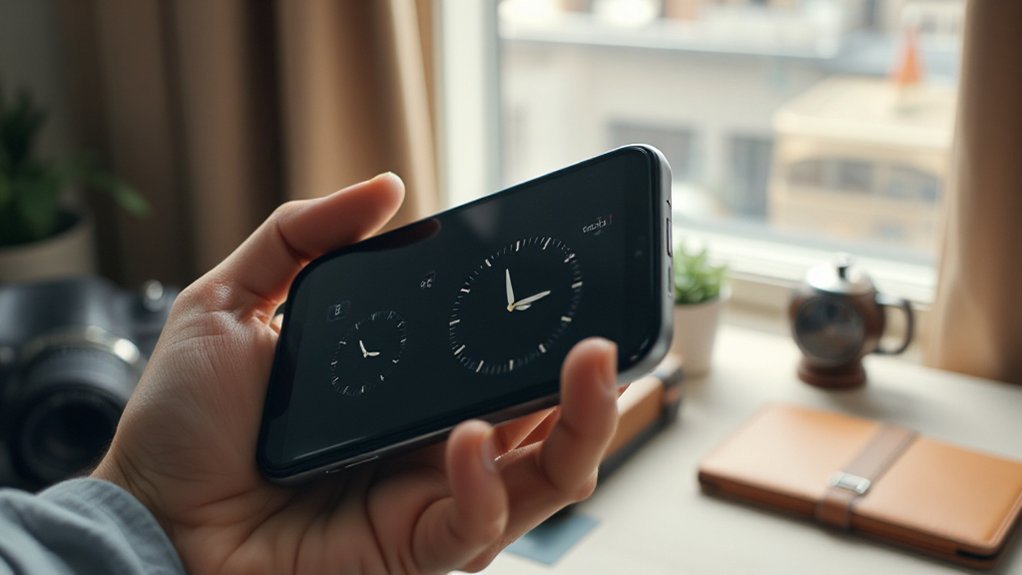

You travel, you text, you miss calls. Stop pretending time zones are “close enough.” You need New York, London, and Tokyo on your phone now. Not buried. Not guessed. Pinned on the clock, slapped on the Lock Screen, stacked on the Home Screen, synced to your calendar. You’ll tap less, wake no one, and stop apologizing at 3 a.m. Fix it in two minutes—if you can handle simple steps.
Key Takeaways
- On iPhone, open Clock > World Clock, tap +, add cities, then reorder; add World Clock widgets to Home/Lock Screen for glanceable zones.
- On Android, open Clock > World, tap + to add cities, reorder or remove; place Clock widgets on Home/Lock screens for multiple zones.
- In Calendar, enable a Secondary Time Zone and set a default event zone to compare schedules across locations.
- Use Time Zone Overrides or System Overrides to pin events or entire calendars to a fixed zone while traveling.
- Add Siri Shortcuts or third-party world clock widgets for quick access, accessibility labels, and customizable layouts matching your theme and readability needs.
Why Tracking Multiple Time Zones Matters
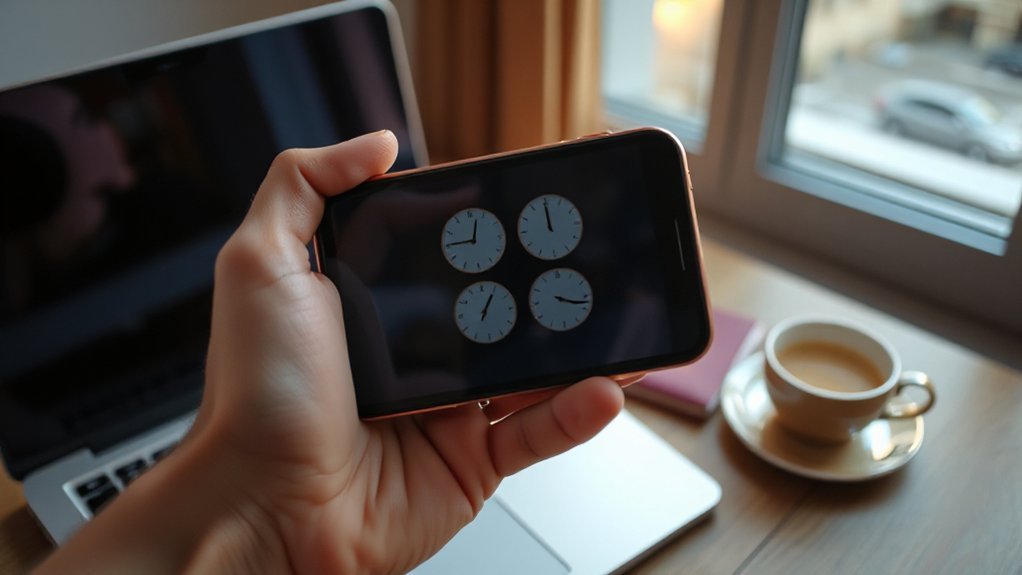
Because let’s be honest, you’re not the center of the clock. Time doesn’t bow when you text. People sleep. Deals die. Flights leave. You track multiple zones because you respect reality and you respect people. That’s cultural awareness with teeth. You don’t ping Tokyo at 3 a.m. You don’t sabotage Berlin with noon-on-your-lunch chaos. You time your asks. You win more yeses. That’s circadian alignment, not mysticism. It’s biology. It’s manners. It’s strategy. Want faster replies? Stop acting like midnight equals “now.” Want calmer teams? Quit forcing fire drills on sunrise. Map the sun. Stalk the gaps. Hit the windows. You’ll look sharper, kinder, and scarily prepared. Or ignore it and keep apologizing. Your choice. Your calendar. Your consequences. Tick wiser. Stop being noisy.
Add World Clocks on Iphone
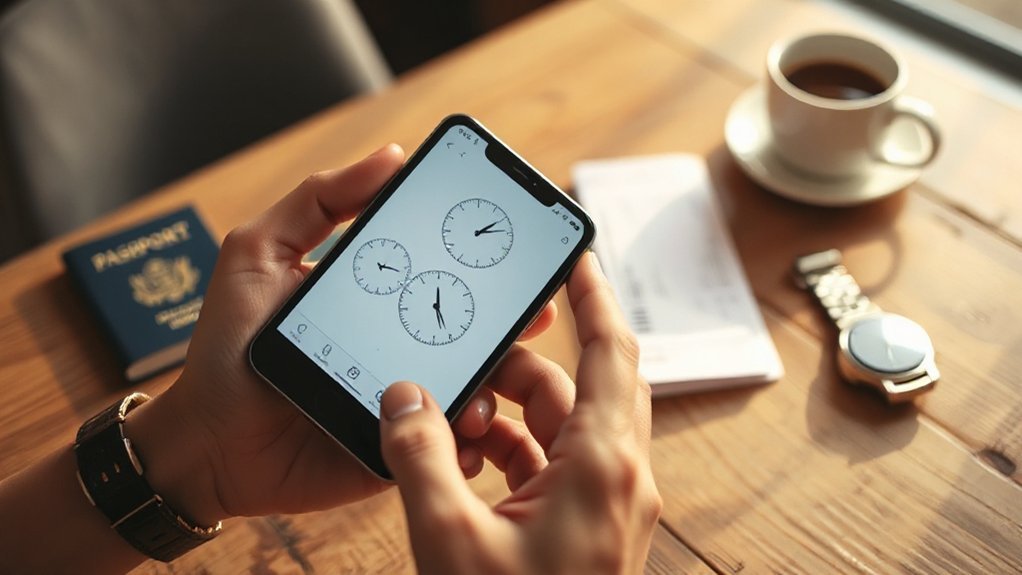
Fire up the Clock app and stop guessing. Tap World Clock. Hit plus. Type Tokyo, London, or whatever city keeps wrecking your sleep. Add it. Do more. Reorder the list. Long‑press, drag, drop. You want clarity? Rename cities with notes using Accessibility Labels in Widgets so VoiceOver doesn’t mumble confusion. Put the World Clock widget on your Home Screen. Big. Loud. Obvious. Traveling? Set one clock to your current spot, keep home beside it, and stop calling at 3 a.m. Like automation? Build Siri Shortcuts: “Show me markets.” Boom, New York, London, Hong Kong, all front and center. Need fast math? Use the clock dial, scrub the time, watch every zone shift. You’re out of excuses. Add the clocks. Today. No more time-zone drama.
Add World Clocks on Android
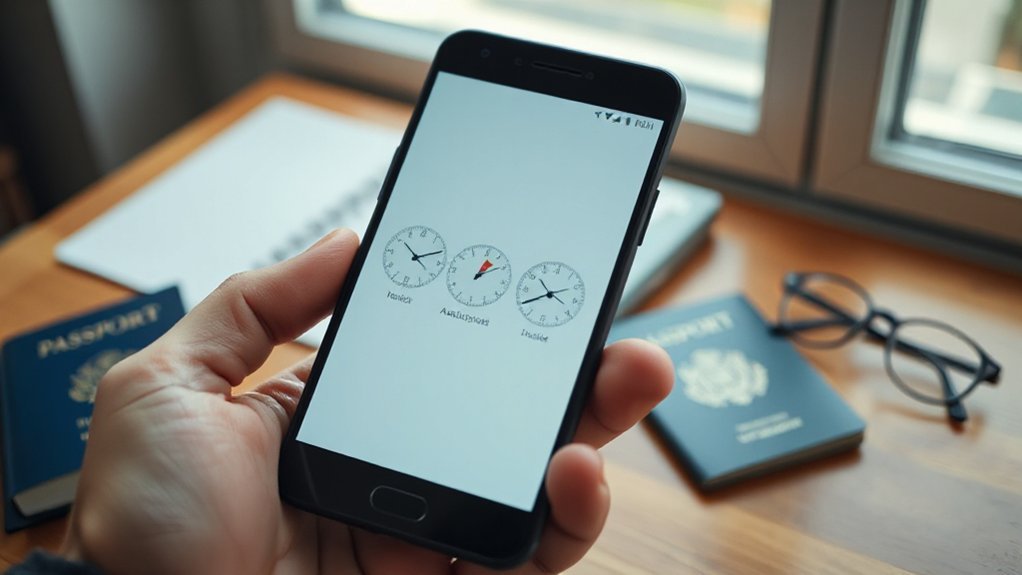
Why guess across continents when your Android can shout the answer? Open Clock. Tap World. Hit the plus. Search Tokyo, Lagos, Lima, your chaos of choice. Add them. Done? Not yet. Press and hold to reorder, because Sydney at the bottom is a crime. Switch 24‑hour time if you hate AM games, or stick with 12, your call. Match locale formats so Monday doesn’t suddenly feel foreign. Grant app permissions if it asks for location, so Home time follows you without whining. Long-press a city to remove mistakes. You will make them. Everyone does. Traveling? Let network time fix the zone, you fix the coffee. Stop guessing meetings. See three clocks. Call once. Not twice. Be bold. Add Delhi then breathe like a pro.
Lock Screen Widgets for At‑a‑Glance Times
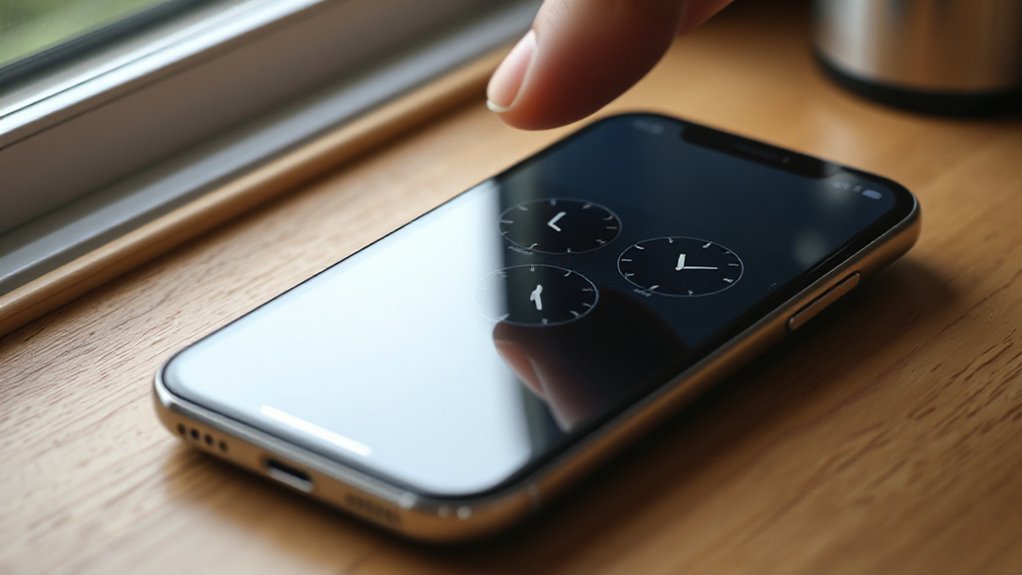
Your lock screen isn’t art, it’s a tool—so slap on iOS Clock Widgets or the Android World Clock and stop guessing. You want Tokyo, London, New York in one brutal glance? Then customize your widget layout, stack what matters, kill the fluff, and prove you’re running the clock—not the other way around.
Ios Clock Widgets
This lock screen isn’t art; it’s a dashboard. You want speed. Add iOS World Clock widgets and stop guessing. Long‑press, tap Customize, drop the widgets under the time. Pick New York, London, Tokyo, or the city that wrecks your schedule. You see offsets at a glance. No scrolling. No excuses.
Tap actions launch Clock so you jump straight to alarms or city lists. Set more cities in the Clock app first, then assign them here. Stack widgets if you must, but keep it lean. Dark mode flips the look, not your focus, so late nights stay readable.
Travel? Fine. Swap cities before boarding. Remote team? Stop sending 3 a.m. pings. You’re the timezone boss now. Act like it. No mercy for late, sloppy scheduling.
Android World Clock
Slapping world clocks onto your Android lock screen isn’t flair; it’s triage. You’re juggling crews across Tokyo, Berlin, and Austin. You need answers at a glance, not a meditation app. Add the Clock widget, pick cities, and stop guessing. Swipe, boom, time zones. Missed calls shrink. Meetings land.
You want speed. Use Android’s quick-add flow from the lock screen and keep your thumb moving. Don’t like tiny text? Lean on accessibility options: larger type, bold fonts, high contrast. Yeah, see it or miss it. Your choice.
And the apps? They’re not toys. Strong developer integration lets third‑party clocks hook notifications, show status, and respect system dark mode. You get reliable sync, not horoscope vibes. One screen. Many clocks. Zero excuses. Set it up now.
Customize Widget Layout
Break the grid. Your lock screen isn’t sacred. It’s a canvas, and you’re the painter with deadlines. Stack two clocks tall, then slam a third wide. Force order to behave. Tighten grid spacing till minutes snap into line. Or stretch it loose so cities breathe. Pick color themes that punch: polar white over ink black, or neon lime that screams at 6 a.m. Set home time big. Make Tokyo small but sharp. Ditch fluff. Keep seconds off unless you trade in seconds.
Tap and hold. Drag, drop, test. Glance from pocket to brain in one beat. If it takes two, you failed. Contrast hard. Labels short. AM brutal. PM honest. Travel tomorrow? Duplicate widgets. Swap colors. Done. You’re in control. Act like it. Now.
Home Screen Widgets for Quick Access
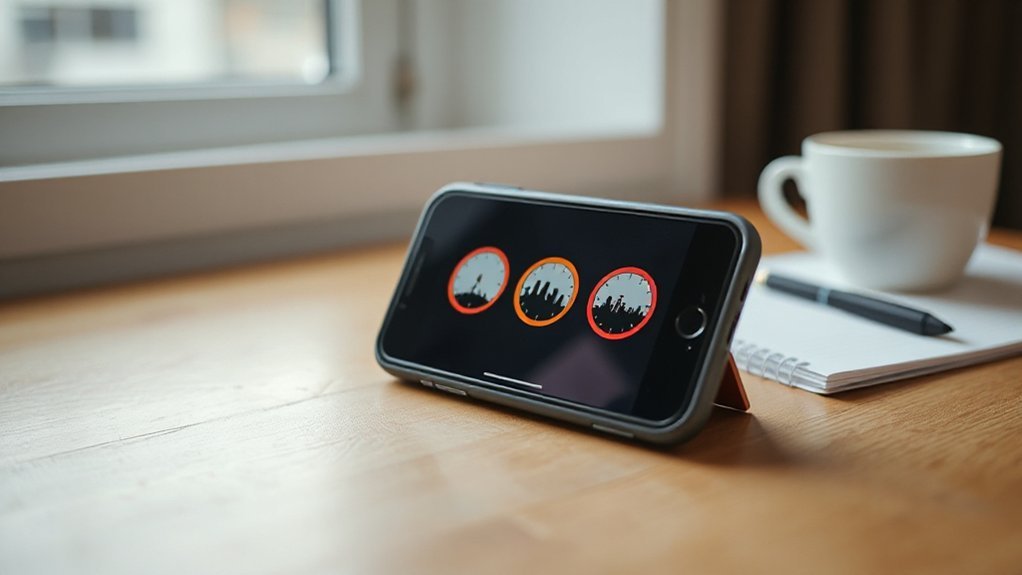
A home screen widget solves your time-zone mess before you even access.
You want speed, not excuses.
Plant clocks on your dock and stop guessing.
Tap once, know Tokyo and Toronto.
No scrolling, no digging, no drama.
Set sizes that fit your thumb, not a brochure.
Use gesture shortcuts like a grown‑up.
Swipe left, flip zones, move on.
Widget accessibility matters.
Bold text, high contrast, big hits.
Travel? Jet lag won’t win.
Meetings in five minutes? You’re ready.
Pin it center, or stack it stealth, just stop pretending time is hard.
Glance, decide, move.
Stop opening apps like it’s 2012.
You crave ruthless clarity.
Widgets deliver, loud and instant.
Kill the delay, kill the doubt, kill the chaos.
Make time finally behave for you.
Calendar Settings for Cross‑Time‑Zone Scheduling
You want cross‑time‑zone sanity? Set a Secondary Time Zone so New York and Tokyo stare you in the face and lock a Default Event Time Zone so 9 a.m. means 9 a.m. not some sneaky 3 a.m. surprise. And when travel wrecks your clock, use Time Zone Overrides to pin events to reality, because you control the calendar or it controls you—choose now.
Secondary Time Zone
While your brain keeps melting over 9 a.m. in New York vs 2 p.m. in London, the fix is stupid‑simple: set a secondary time zone in your calendar.
You add one city. Boom. Two columns. No math. You see your time and theirs side by side, like a scoreboard you can’t ignore. Treat it like a System Timestamp for real life. Precise. Cold. Honest. Meetings stop slipping.
Do some Developer Testing on yourself. Make a dummy event. Drag it across hours. Watch both zones snap into place. That’s clarity.
You plan calls that don’t punish anyone. You avoid 3 a.m. “oops.” You look competent.
Stop guessing. Tap settings, pick the secondary zone, pin it. Then use it daily. Compare. Convert. Your future self smiles.
Default Event Time Zone
Secondary columns are great, but your events still default to the wrong clock and wreck your schedule. Fix the default time zone, now. Open calendar settings, choose the zone you actually live in, not the fantasy one your phone guessed. Flights at 6? Then 6 should mean 6 where you stand. Meetings stop sliding. Reminders stop gaslighting you. You get sanity back. Set the default for all new events; make it the rule, not the exception. Then check server synchronization so invites match the source, not some rogue cache. Your boss in London? Your team in Denver? Fine. Your base stays yours. Also mind legal compliance for timestamped records, payroll, and audits. You want receipts, not excuses. Do it today. Don’t blink. Start now.
Time Zone Overrides
Because crossing time zones shouldn’t turn your calendar into chaos, time zone overrides take control back. You set the rules. Not the plane. Not the tower. Your events stick to home time or jump to local, on your command. Traveling to Tokyo? Fine. Your 9 a.m. stays 9 a.m., or it morphs to theirs. You decide, not jet lag.
Flip on System Overrides to pin your calendar to one zone, period. Ruthless. Predictable. No surprises. Or allow App Exceptions when one app needs local time but the rest stay anchored. Smart split. No drama.
Test it. Create a meeting. Change your phone’s zone. Did the time hold? Good. If not, fix the toggle. Don’t negotiate with clocks. Make them kneel. Do it. Today. Now.
Messaging and Calling Tips Across Time Zones
Even if your friends live a world away, you don’t get to blow up their phone at 3 a.m. You check their clock. You read the room. Contextual availability matters. If their status says “in class” or “on shift,” back off. You’re not the emergency. Text first, call second. Ask, “Got five minutes?” Wait. Yes, wait. Cultural norms differ, so mirror theirs, not your own. Emojis help tone, but they don’t excuse bad timing. Keep messages tight. Lead with purpose. “Need a quick answer on the file,” not a novel. Schedule sends like a grown‑up. Use labels: Work, Family, Night. Pin key threads so you don’t doom‑scroll at bedtime and misfire. And if they reply slow, relax. Time zones aren’t rudeness. Patience is. Today.
Travel and Daylight Saving Time Gotchas
While you chase sunsets across airports, time plays cheap tricks.
Your phone swears it knows the local hour. It doesn’t. Not always.
Your phone insists it knows the time. It lies. Sometimes spectacularly.
Airplane lands, clock jumps, calendar slides, you miss lunch and a meeting.
Daylight Saving flips a switch, then steals sixty minutes like a pickpocket.
Border anomalies laugh at you: cross a street, lose an hour, walk back, regain it.
Half-hour zones? Quarter-hour weirdos? Yes, they exist. Pretend they don’t and bleed.
Historical shifts linger like ghosts, so the city you visit keeps rules your last map forgot.
Do this: lock time zone during flights. Verify after SIM swaps. Recheck layovers.
Set alarms by local time, not home pride.
Create duplicate calendar entries across zones.
Trust, but screenshot.
You wanted adventure. Congratulations. Anyway.
Lightweight Third‑Party Apps for More Control
If the built-in clock keeps lying, take control with lighter gear—lean third‑party apps that juggle time zones without sludge. You want speed. You want truth. Grab a tiny world clock widget not a bloated dashboard. Pin Tokyo next to Toronto. Tap once. Boom. Meetings stop exploding. Pick apps that ask for Minimal permissions, because your calendar isn’t a buffet. Kill trackers. Read permissions like a hawk. Do quick Privacy audits monthly. If an update adds ads, eject it. Try open source when you can, verify on GitHub, and walk away if it stalls. Customize colors, bold the home zone, mute the noise. No accounts. No drama. Just clocks. You run the schedule. Not the other way around. Start now. No more excuses. Time obeys.