

Your clock’s lying again, and you know it. Meetings slip. Alarms miss. Blame “mystery bugs” if you want—or fix it. You jump into Date & Time, switch on automatic time and time zone, hit Sync Now, and stop pretending. Windows, macOS, Linux. Same drill. No more ghost hours. Unless you love chaos. But if it still drifts after that, buckle up—the real culprit isn’t on the screen.
Key Takeaways
- Windows: Settings → Time & language → Date & time; enable Set time zone automatically or choose the correct zone; click Sync now.
- macOS: System Settings → General → Date & Time; select Time Zone; enable Set time and date automatically.
- Linux: use timedatectl set-timezone Region/City; enable set-ntp true; verify with timedatectl status.
- Disable conflicts: turn off VPN auto time‑zone switching, resolve dual‑boot UTC/localtime mismatch, avoid multiple time‑sync services.
- If settings are locked or time drifts, check admin restrictions, replace CMOS battery, allow UDP 123, and use reliable NTP servers.
Signs Your System Clock Is Wrong

How do you know your system clock is lying? Apps argue with you. Websites shrug. Your inbox stacks emails from the future like it’s sci‑fi night. Meetings appear yesterday. Calendar discrepancies explode across your day, and you swear you didn’t time travel. Logins flake. Two‑factor codes expire before you blink. That’s classic authentication failures screaming, fix me or else. Files save “before” they’re created. Chats jump out of order. Streams buffer for no reason because your device thinks noon is midnight. You refresh. Nothing. You reboot. Still wrong. Friends show up while you’re “early.” Spoiler: you’re late. Your system tray whispers sweet lies. Alarms betray you. Deadlines slip, then crash. Pay attention. When time feels slippery, it’s not drama. It’s your clock. Fix it.
Check and Set Time Zone on Windows 10 and 11

Open Settings > Time & Language > Date & Time—yes, right now—because guessing the clock is not a personality trait. Flip on Set time automatically; if your PC can stream cat videos, it can find a time server without your hand-holding. Then pick the correct time zone, not “whatever,” because meetings don’t teleport and alarms don’t read minds.
Open Date & Time
While your clock insists it lives in yesterday, you’re about to shut it up by diving into Date & Time and forcing the right time zone. Start brutal and simple. Right‑click the taskbar clock. Hit Adjust date and time from the taskbar menu. Yes, that obvious. Windows mocks you; you click anyway. Prefer speed? Smash the keyboard shortcut Windows+I, then Time & language, then Date & time. Don’t stall. Search works too: tap Start, type Date & Time, press Enter. You’re in. No excuses. Windows 11 or 10, same idea, different paint. If Settings nags, ignore its tone and keep moving. Your cursor leads. You follow fast. Open the panel. Stare down the map. Choose where you actually live. Do it now, not later.
Enable Set Time Automatically
Flipping the switch beats babysitting the clock. Open Settings, Time & Language, Date & time. See Set time automatically. Turn it On. Do it now. Windows grabs the correct time from Microsoft’s servers and stops your laptop from drifting like a busted watch. Traveling? No drama. Sleep, wake, sync. Done.
Does the toggle look gray? Admin Restrictions. School or work owns the rules. Ask IT or switch to a local account. Still stuck? Connect to the internet, then hit Sync now. That button smacks the clock awake.
Paranoid? Good. Privacy Concerns matter. Automatic time uses network time, not your secrets. It needs access to time servers, not your diary. If it fails, restart Windows Time service, then try again. Clock chaos ends for you.
Choose Correct Time Zone
Why is your laptop living in the wrong city? Fix it. On Windows 11, open Settings, hit Time & language, pick Date & time, then choose the exact Time zone. Not “close enough.” Yours. Toggle Set time automatically off if it fights you. Then on. Check Adjust for daylight saving. On Windows 10, same drill: Settings > Time & Language > Date & time > Time zone. Click the city that matches your life, not your dreams.
Why the fuss? Missed meetings, broken logs, even legal implications when timestamps don’t match. Audits hate sloppy clocks. And time zones shift; governments rewrite borders and rules. Those historical changes bite. Update Windows. Reboot if it sulks. Verify in the taskbar. Meetings align. Sanity returns. No excuses.
Enable Automatic Time and Time Zone on Windows
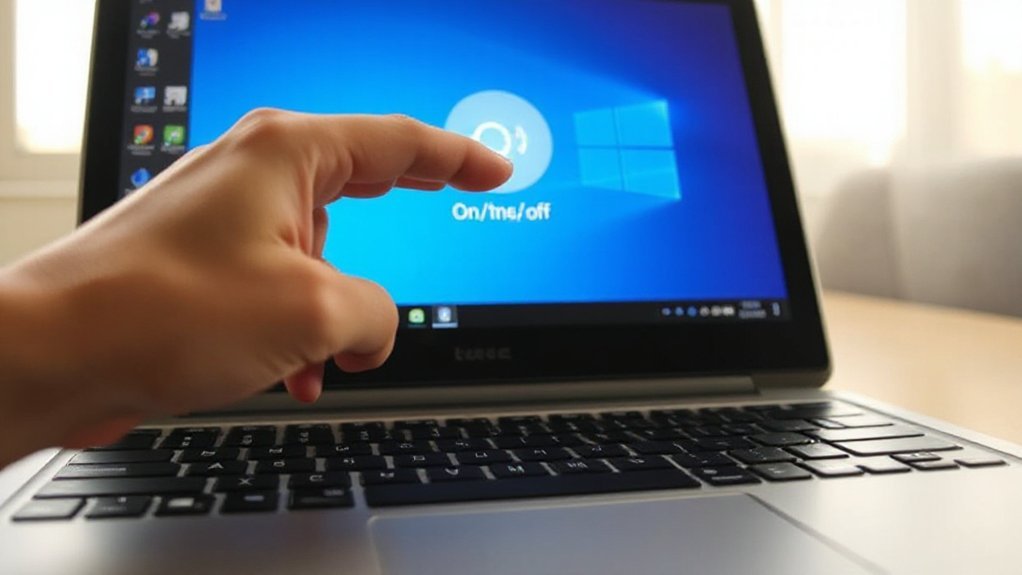
Fire up Settings and let Windows do the clock work for you. Open Time & language, smash Date & time, toggle Set time automatically. Flip Set time zone automatically too. Location on? Good. No? Turn it on. Click Sync now and stop guessing minutes like it’s 1999. Still off? Restart Windows Time service, or check VPN junk that hijacks NTP.
Why bother? Because wrong time breaks logins, Kerberos, and SSL. That’s downtime. That’s pain. Those are Security implications you can’t shrug off.
Rolling this out for everyone? Think Enterprise deployment. Use Group Policy or Intune, enforce NTP, lock the toggles, win the week.
Laptop travel? Auto zone nails it. Meetings line up. Timestamps make sense. Chaos loses. You win. Do it now. Right now.
Set Time Zone on Macos

How late is your Mac—again? Fix it. Open System Settings, Date & Time, Time Zone. Turn off guessing. Pick your city. Lock it in. Meetings stop exploding. Flights stop vanishing. You stop looking sloppy.
Prefer command line? Fine. Use Terminal Methods. Run sudo systemsetup -settimezone “America/New_York”. Replace with your zone. Check with systemsetup -gettimezone. Done, no drama.
Worried about App Compatibility? Good. Calendar invites align. Messages stop time‑warping. VPN shifts? Recheck the zone after you connect. Traveling? Switch fast or pay with chaos.
| Scenario | Symptom | Fix |
|---|---|---|
| Missed standup | Calendar off by hours | Choose correct city |
| Late emails | Timestamps skewed | Set zone, restart apps |
| VPN hop | Region flips | Reapply timezone |
| Flight day | Boarding time wrong | Verify city before leave |
Stop drifting. Own your clock today.
Enable Automatic Date & Time on Macos
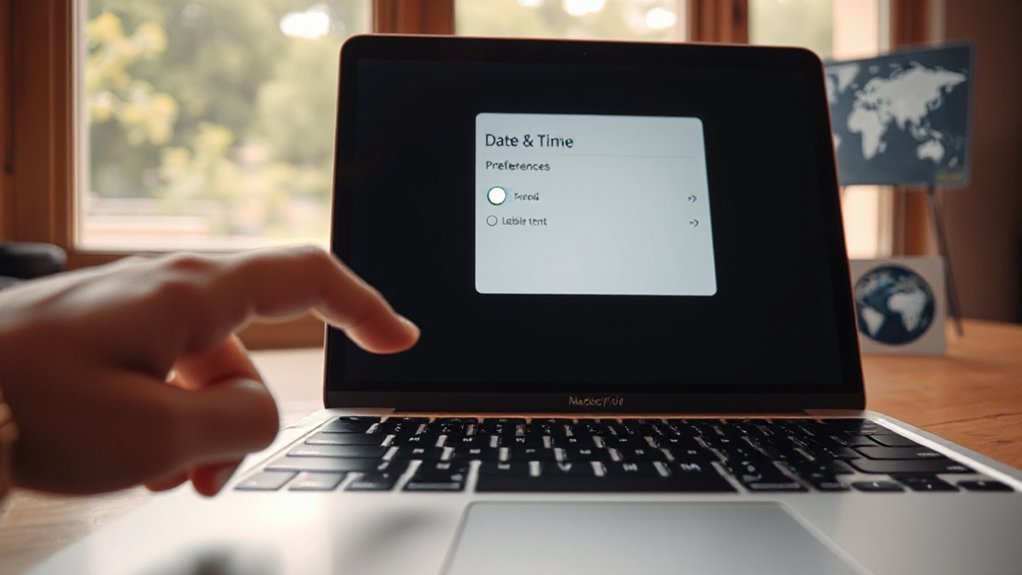
When your clock keeps lying, stop babysitting it and make macOS do the work.
Open System Settings.
Go to General, then Date & Time.
Flip Set time and date automatically.
Pick Apple’s time server and relax.
Your Mac syncs, you stop guessing.
Travel, reboot, daylight saving chaos?
Fixed.
But you worry about privacy implications.
Fair.
Auto time sends network pings, not your diary.
Minimal data, huge sanity.
And the battery impact?
Almost nothing.
The radio already talks.
One more whisper won’t kill it.
If you’re offline, it waits and tries again.
Stop clock babysitting.
Start living.
Need proof?
Watch the menu bar snap to truth after Wi‑Fi connects.
No more calendar shame at meetings.
No wrecked timestamps.
Flip it once, walk away, stay sane.
Configure Time Zone on Linux (Ubuntu, Fedora, and Others)
Quit letting your Linux box think it lives in yesterday. Set the zone, own the clock.
Open a terminal. Be ruthless. Run: timedatectl list-timezones. See your city? Good. Then slam it in: sudo timedatectl set-timezone America/New_York. Different distro? Debian or Ubuntu can also run sudo dpkg-reconfigure tzdata. Old school? Link it yourself: sudo ln -sf /usr/share/zoneinfo/Europe/Berlin /etc/localtime and echo Europe/Berlin | sudo tee /etc/timezone.
Missing data? Install the tzdata package. No tzdata, no truth.
Containers aren’t special. They’re lazy. Fix container timezones by mounting /etc/localtime read-only, passing TZ=Asia/Tokyo, or baking tzdata into the image. Alpine? apk add tzdata. Debian? apt-get install tzdata. Test it. date. Wrong again? Pick a real city, not UTC out of fear. Set it right, breathe, move on, time obeys.
Sync With Internet Time Servers (NTP)
Stop guessing the time—enable automatic time sync and let your clock get reality checks every few seconds. You want accuracy, not drama, so turn on network time now and stop babysitting minutes like it’s 1999. Then pick a reliable NTP server—pool.ntp.org, your ISP, or a trusted org—because junk servers lie, good ones don’t, and you’re done.
Enable Automatic Time Sync
Although your clock thinks it’s a rebel, you need it to obey the internet and sync itself automatically. Turn on automatic time sync and stop babysitting minutes. On Windows, Settings > Time & Language > Date & Time, flip Set time automatically. On macOS, System Settings > General > Date & Time, enable Set date and time automatically. On Linux, use timedatectl set-ntp true. Done. No drama.
Now the lecture. You want accuracy, not chaos. Automatic sync fixes drift, anchors logs, prevents weird app errors. But think before you click. Privacy implications exist; your device pings time servers. Tiny data, real pattern. Security considerations too. Unsynced clocks break certificates and updates. That’s dumb and dangerous. So stop waiting. Flip the switch. Right now. today.
Choose Reliable NTP Server
Why trust your clock to some rando server that wakes up late and lies? Pick a serious NTP source, not a sleepy back‑alley box. You want speed, stability, and truth. Start with Geographic Proximity. Closer servers cut delay and jitter, so your minutes don’t wobble like jelly. Then judge Provider Reputation. Big names publish status pages, uptime, and stratum levels. Shady hosts give shrugs.
Use pool.ntp.org, but pin your region—us, eu, asia—don’t gamble worldwide. Better yet, use your ISP’s or a university’s nodes. Test them. Run ntpdate or chrony and watch offsets. Bad numbers? Drop them. Mix three to five servers for sanity. Redundancy wins. Firewalls open? UDP 123, yes obviously. Set it, monitor drift weekly, stop living late. Do it now, not tomorrow.
Fixes When Time Still Drifts or Resets
When your clock keeps time‑traveling after you “fixed” it, you don’t shrug—you fight back.
Start with the hardware. The CMOS battery dies, your BIOS forgets, and time falls off a cliff. Do a Battery Replacement. Yes, a two‑dollar fix beats endless rage. Still drifting? Update the motherboard BIOS and your laptop’s embedded controller. Call it a Firmware Update, not a wish. Next, hunt background bullies. Disable sketchy “time sync” apps, cleanup bloat, and stop overlapping schedulers that argue by the minute. Pick one service and make it boss. Then lock settings. Set the correct time zone, stop auto‑switches you don’t need, and hard‑toggle 24‑hour for sanity. Check malware too—clock‑hijackers exist. Finally, watch it. Reboot twice. If time holds, you won. If not, escalate. Now.
Special Cases: Dual-Boot, Virtual Machines, and VPNs
Because mixed setups cheat, your time goes sideways. Dual‑boot? Windows hugs local time; Linux loves UTC. They fight. You lose. Pick a referee. Set the Hardware Clock to UTC, then tell Windows to use UTC, or flip Linux to localtime. Not both. Lock it in with NTP and stop the brawl.
Virtual machines play dirtier. Guests copy the host clock, then snapshots yank it back. Brutal. Enable host time sync, disable duplicate services inside the guest, and resync after restore. Keep the host right or every VM drifts.
VPNs? They gaslight you. IP Geolocation screams “new time zone,” your system listens, meetings die. Turn off automatic time‑zone by location, pin the correct zone, keep NTP on. One clock. Your rules. No excuses. Fix it.